
SP65WBS - 6.5" Network Ceiling Speakers
Quick Start Guide
Set Up of Individual Pair of Speakers
- Download the Smart Sonix app from the app store (See below)
- Plug speakers into power and wait for green flashing light
- Go to wi-fi settings in your phone and select the wi-fi speaker
- Go to the Smart Sonix app and follow app instructions to connect and name the speakers
- You will need your wi-fi name and password
- Once connected go to browse tab in the app and chose your preferred streaming services
Set Up of Multi-Room Audio
- Download the Smart Sonix app from the app store (See below)
- Select the device tab
- Click on the chain in top right corner
- Select what speakers you want in zone down bottom of app, selecting bottom speaker wanted first and working up.
- If wanting to set up speakers as left & right, click on the circled LR tab and select L (Left) or (R) Right
Troubleshooting
If you cannot get a green flashing light on set-up, keep holding down the reset button ( located alongside the light on the master speaker.)
If songs are out of synchronisation, restart music app and re-select music.
Manual
Safety Instructions
- Please read the instructions carefully before installation and use.
- Prior to installing the speakers into any ceiling/wall, check the structure for weight bearing ability and avoid contact with any wiring or plumbing that might be behind the surface area. Installing on soft materials or in areas incapable of supporting the speakers' weight may cause personal injury or damage to the speaker.
- Make sure the speaker is properly secured to the ceiling/wall. Please use the proper screws, bolts, or anchors. Failure to do so may cause the speaker to become unsecured and cause potential damages/injuries.
- Damage to the woofer and tweeter may occur if the speaker is dropped or hit-resulting in no sound or distorted sound.
- Never overdrive your speakers to the point of distortion and always reduce volume prior to switching input sources.
- Use only approved and certified wiring in your installation, do not stretch or place the wire in contact with sharp objects.
- Prior to removing cables ensure all power to your amplifier and other components is turned off.
Preparation
The hardware equipment listed below is needed to install the speaker.

Cutting Saw

Wire Strippers

Power Drill

Pencil

Tape Measure

Stud Finder

Safety Goggles

Ladder
Packing List
Ensure that you have received all parts according to the component checklist prior to installation. If any parts are missing or faulty, contact your place of purchase for a replacement.
Master

Active Speakers

User Manual

Cutout Template

Grill

Power Cord with Adapter

Installation Tool
Slave

Passive Speaker
Grill
Speaker Overview
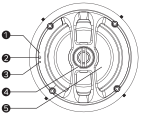
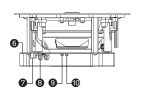


- LED Indicator
Slowly flashing red: power on or reset.
Steady red: the Internet module is ready to connect.
Slowly flashing green: WiFi is connecting.
Steady green: WiFi is connected.
Fast flashing blue: Bluetooth is connecting.
Steady blue: Bluetooth is connected.
Steady cyan: Current audio source is RCA.
Flashing red, green and blue: The system is updating or resetting. - IR Receiver
- Reset Button
Press it to switch play mode.
Press it for 3 seconds to start connecting to the Internet.
Press it for more than 10 seconds to start resetting with flashing red, green and blue light. - Pivoting Tweeter
- Woofer
- Built-in Amplifier & Bluetooth Driver
- RJ45 Ethernet Port
- RCA Jack
- Stereo/Mono Switch
Switch to the “stereo” position when a passive speaker is attached. If not, keep in “mono” position. - Volume Limiter
> Limiter Enabled (50%): The volume will be limited to the max. output 15W@8Ω
> Limiter Disabled (100%): The volume can be adjusted to the max. output 30W@8Ω - Quick-Install Dog Leg Fixings
- Speaker Output
- Power Inlet (DC 24V/2.5A)
Installation
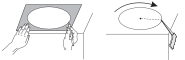
1. Cut the Speaker Hole
Position the cutout template where you are installing the speaker. Trace the template to mark out the speaker location with a pencil. Drill a pilot hole and cut all of the way around the circular outline with a cutting saw.
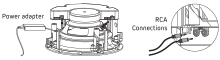
2. Wire the Speaker
Connect the adapter and RCA cables (if needed) to the corresponding ports.
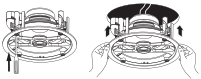
3. Install the Speaker
Adjust the dog leg with the installation tool as shown and insert the speaker into the hole.
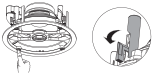
4. Lock the Speaker
Lock the speaker by pressing the buttons located on the front face of the speaker and the dog leg will engage automatically.
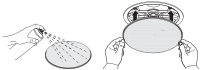
5. Attach the Grill
Paint the speaker frill to match your room decor before you attach them to the speaker. As several magnets are on the speaker frame, attach the grill to the rim of the speaker directly. Ensure the grill is attached to the speaker securely to keep the grill from falling.
Note: Paints and spray gun are not included.
Connection
1. WiFi Connecting
Installing Controller App
Please use a web browser to search for “Smart Sonix app”, then download the controller app from Google Play store (Android) or Apple App store (IOS).
Connecting the WiFi Speaker
Ensure the speaker is connected to the power supply.
Press the WPS button to start the speaker, then you will hear an instruction “Enter the setup mode, follow the instructions in app to finish the setup", and the power indicator flashes green indicating that the speaker is ready to connect.
Any wireless device (such as phones, tablets, laptops etc.) is available for connecting. One connected successfully; the power indicator will display a steady green.
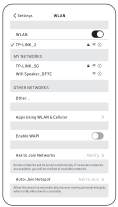
1. Turn on the WiFi function and connect your phone to an available WiFi network you want.
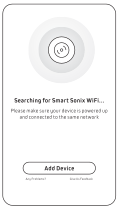
2. Start the Smart Sonix controller App and click Add Device
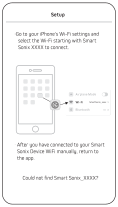
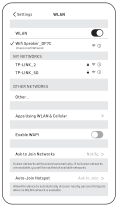
3. Follow the instructions in the app and get your phone WiFi settings to find the “WiFi Speaker _****” in the network list and connected it.
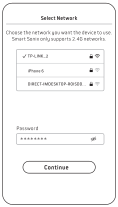
4. Return to the Smart Sonix controller app. Select the same Wi-Fi network as the one connected in step 1, type the password of the Wi-Fi, and click Continue.
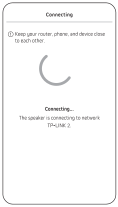
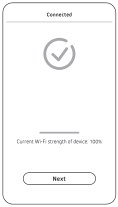
5. Wait for a few seconds, the device will be connected to the WiFi automatically. After connecting successfully, click Next.
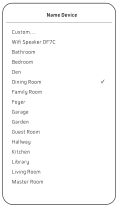
6. Name the device according to the room you will install and click >.
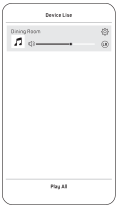
7. After completing the above settings, the Wi-Fi speaker will be in the device list. If you wish to install more than one Wi-Fi speaker, press + to add devices and name them accordingly. After these steps, your multi-room music network will be successfully established.
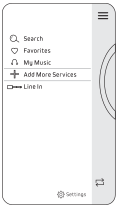
8. Choose a device and play a song in your phone to text whether the device works. If okay, testing is finished and you can forward to use the speaker.

Note:
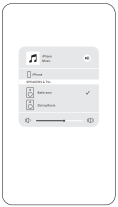
For iPhone, iPad and iMac smart devices with an iOS operating system, you can use the Wi-Fi speaker with the Airplay function. Connect your device to the speaker Wi-Fi. In the pull-up or pull-down menu, click Airplay and choose the Wi-Fi speaker, then the sound can be streamed from your smart device. (Above is the operation interface of iOS 13 system shown for your reference).
- When using an Ethernet cable to connect the speaker to a router, the router must not have any special setting such as assigned IP or banned UPNP.
- The Wi-Fi speaker executes the Wi-Fi connection first, upon speaker power up.
- Wi-Fi input has priority when Wi-Fi input and RCA input are connected simultaneously.
- If multi-room networking fails the first time, restart all the equipment and then retry the above instructions. If trouble persists, press the “WPS button” located on the front of the speaker.
- The wireless connection will be lost if the distance between the speaker and the wireless device exceeds 80m.
2. Bluetooth Pairing
Ensure the speaker is connected to the power supply and turned on. Once the speaker has powered up for 10 seconds, the power indicator flashes blue indicating that the speaker is ready to pair. Any Bluetooth device (such as phones, tablets, laptops etc.) are available for pairing.
Once paired successfully, the power indicator will display a steady blue.
Open the setting menu and select Bluetooth.
Turn on Bluetooth and search devices.
Click “BT speaker” to pair your device.
Note:
- One device can only connect or control one Bluetooth speaker at a time.
- PIN code for Bluetooth is: 1234
- If your device prompts a pairing code, type in initial code.
- If pairing fails the first time, restart all the equipment and then follow the above instructions again. If trouble persists, press the “reset button” located on the front of the speaker or on the remote control.
- If you are unable to reconnect a previously connected device, remove the “BT Speaker” from the list of paired devices and then follow the above instructions again.
- The Bluetooth connection will be lost if the distance between the speaker and the Bluetooth device exceeds 10m.
3. RCA Connecting
- Connect the speaker using a dual RCA left/right cable.
- Use the remote or Smart Sonix app to choose RCA mode (Wi-Fi or Bluetooth input has the priority when 3 audio inputs are connected simultaneously.)
- The RCA mode will be activated when the indicator light displays cyan.
4. Create Stereo Pair
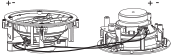
- Connect the passive speaker to the phoenix connector output on the active speaker ( #12 – Speaker Overview section of this guide)
- Slide the mono-stereo switch to the stereo position on the active speaker ( #9 – Speaker Overview section of this guide)
5. Switch 3 Audio Sources
WiFi Mode
After connecting with Wi-Fi, use the Smart Sonix app to play audio and the speaker will automatically operate using the WiFi mode.
Bluetooth Mode
Use Smart Sonix app to switch the audio to source to “Bluetooth”.
RCA Mode
Use the Smart Sonix app to switch the audio source to “Line in” for RCA mode.
Care and Maintance
- Turn off the power to the speaker when unused for long periods of time.
- Ensure all equipment is turned off prior to cleaning. Surfaces only need occasional dusting/cleaning. Never use chemicals or solvents as they may damage the surface. Always clean using a dry cloth.
- Never touch the speaker drives.
Specifications
| Active Speaker (Master) | Passive Speaker (Slave) | |
| Woofer | 6.5" Polypropylene Cone | 6.5" Polypropylene Cone |
| Tweeter | 0.75" Silk Dome | 0.75" Silk Dome |
| Frequency Response | 70Hz-20kHz | 70Hz-20kHz |
| Sensitivity (1M/1W) | 87dB | 87dB |
| Nominal Impedance | 8Ω | 8Ω |
| RMS | / | 60W |
| Amplifier Power | 2x30W/8Ω | / |
| Wireless Connection System | WiFi 802.11b/g/n | / |
| Wireless Transmission Distance | 80m | / |
| Bluetooth Version | V5.0 | / |
| Bluetooth Distance | 10m | / |
| Power Supply | DC 24V/2.5A | / |
| Dimensions | ∅233 x 105mm | ∅233 x 105mm |
| Cutout Size | ∅209mm | ∅209mm |